https://mcp.nanocorp.so. It then works in the
Claude apps on your phone and in Claude Cowork too. For Claude Code, see
Claude Code.
On the web
1
Open your connectors
On claude.ai, go to Customize > Connectors, click
+ Add, then Add custom connector.
2
Add NanoCorp
Name it Claude detects how NanoCorp signs you in. Keep Sign in now under
Authentication and Use Claude’s published identity under OAuth
client. Leave Request headers empty, then click Add.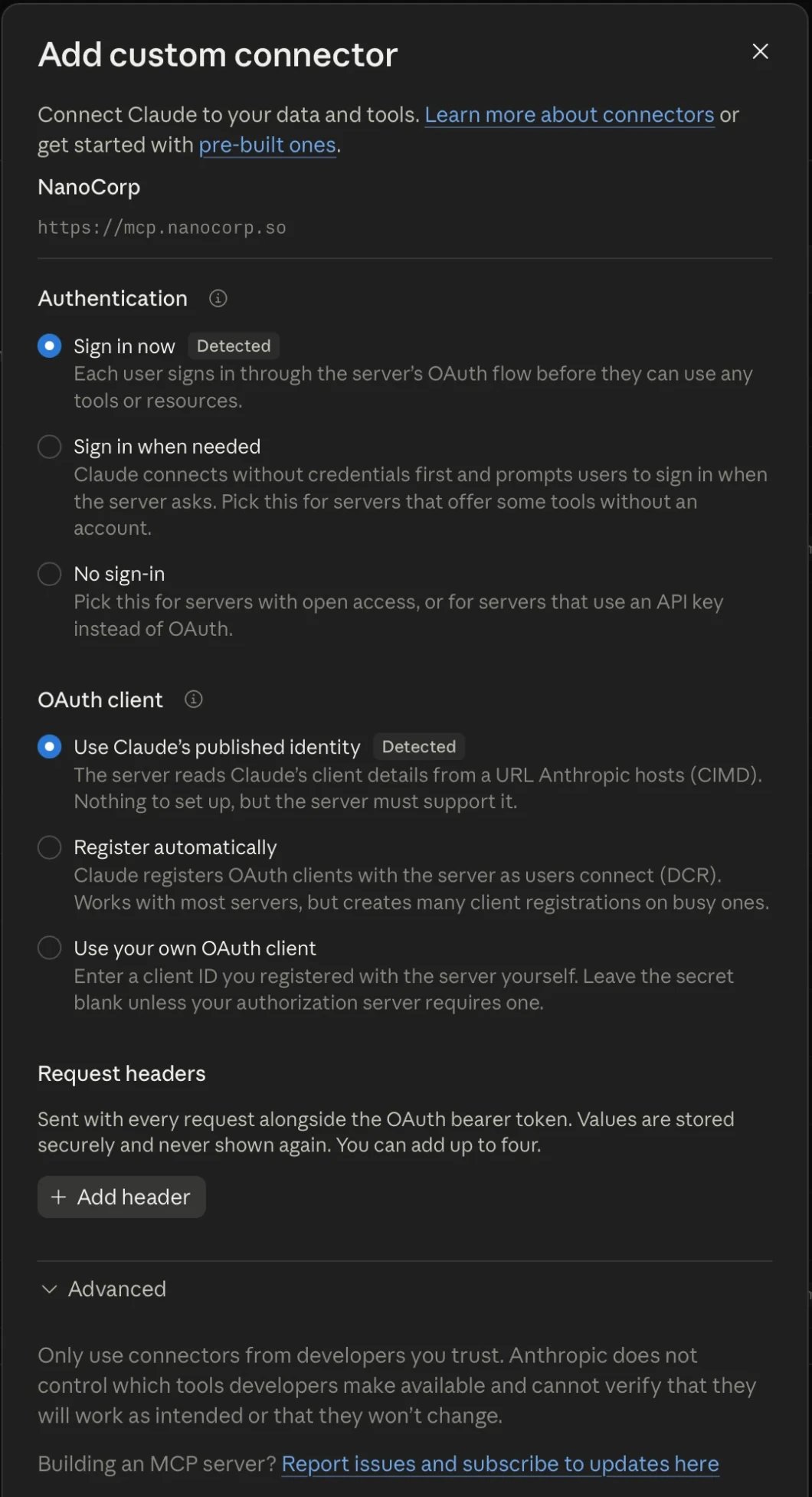
NanoCorp, enter this server URL, then click Continue:3
Connect
Open NanoCorp in your list of connectors and click Connect.
4
Sign in and allow
Claude opens the NanoCorp sign-in page. Sign in, or create your account
there. The confirmation page names Claude by its address,
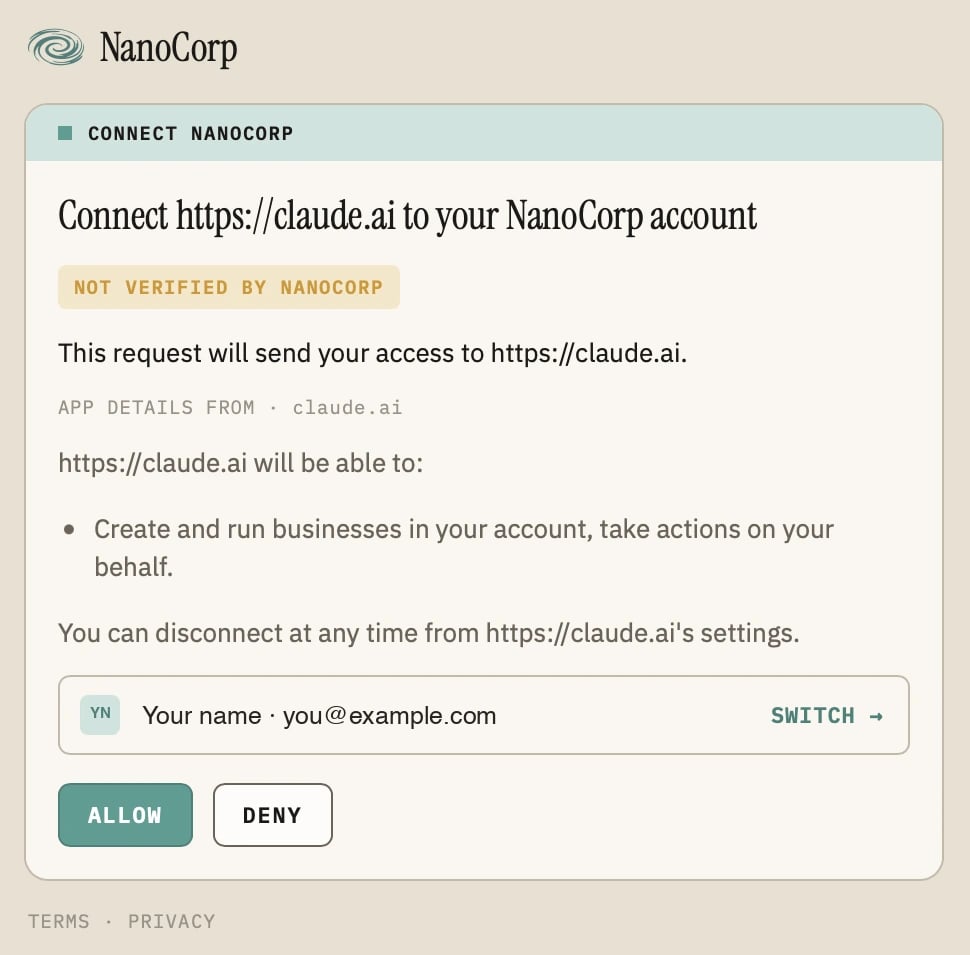
https://claude.ai, and shows Not verified by NanoCorp. Check that it
sends your access to https://claude.ai and that the account is yours,
then click Allow.5
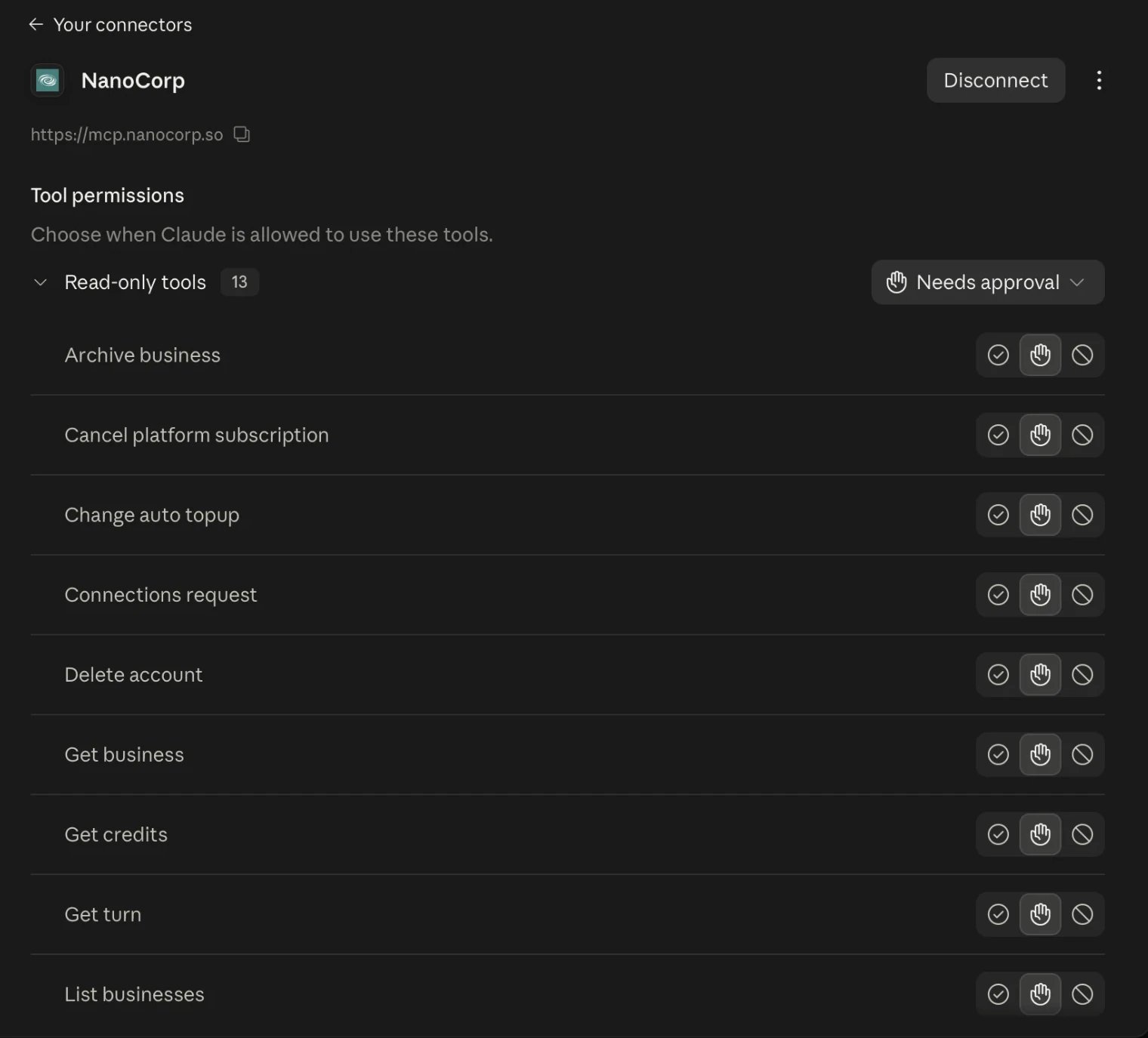
Choose the tool permissions
You are back in Claude, and NanoCorp shows as connected with its list of
tools. For each tool, you can let Claude use it without asking, keep
Needs approval, or block it.Some tools only give you a link and change nothing, such as Delete
account or Cancel platform subscription. See
What your AI agent cannot do.